


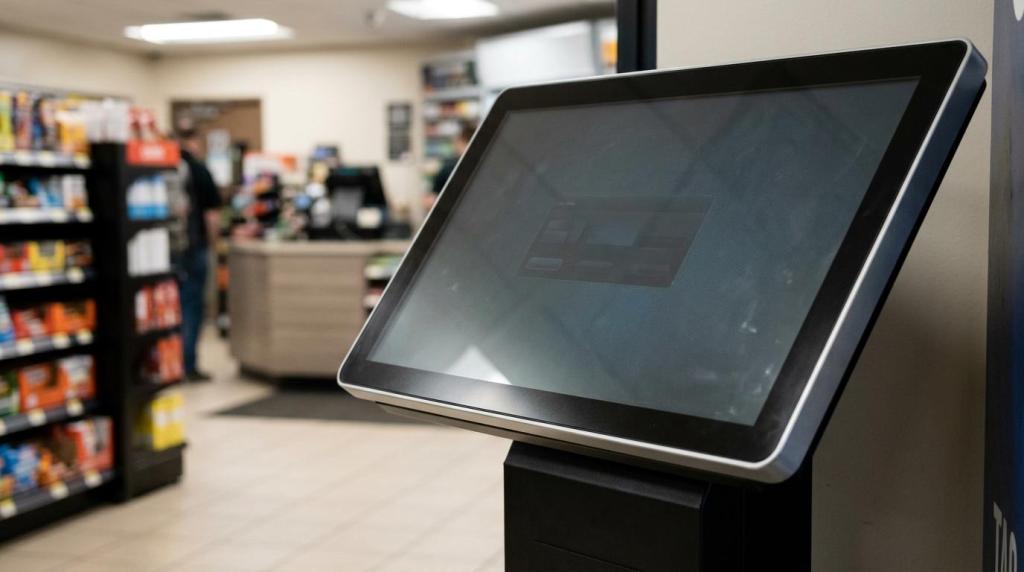
A skill game kiosk setup is not just a screen and a game library. In a retail store, you need a locked-down device, a workable redemption flow, and kiosk placement that fits customer traffic and accessibility expectations.
TL;DR: Summary
- A retail skill game kiosk works best when you pair locked-down kiosk software with accessibility-aware hardware placement, not when you focus only on game content.
- For most unattended retail environments, single-app kiosk mode using Microsoft Assigned Access or Microsoft Edge kiosk mode is safer than a broader desktop setup because it runs full screen, limits user actions, and can auto-restart if closed.
- Your core buying criteria should include POS and player account integration, reporting, age gates, geofencing, remote management, and audit trails.
- Accessibility matters at setup time: U.S. guidance for self-service machines points to clear floor space, reach range, operable parts, privacy, speech output, braille, and display screens.
- If you want faster rollout and easier multi-store management, cloud-based kiosk software can reduce hardware overhead and simplify updates, but you still need a plan for internet outages, staff permissions, and daily reconciliation.
- RiverSlot is one example of a web-based retail kiosk platform that says it supports launch in under 1 hour, over 70 games, monthly updates, and kiosk, POS, reporting, and player account workflows for physical locations.
If you operate a smoke shop, gas station, internet cafe, bar, or kiosk-based game room, your main decision is simple: build a kiosk that is hard for customers to break and easy for staff to run. The nine questions below give you a practical framework for setup, software selection, compliance controls, and scaling.
What is a skill game kiosk in a retail store?
A retail skill game kiosk is a restricted customer terminal that runs game, account, and redemption workflows through software such as Microsoft Assigned Access and a web platform like RiverSlot.
In practice, your kiosk is closer to a self-service transaction machine than to a normal PC. Customers should see only the approved interface, whether that is a single full-screen app or a tightly restricted browser session. Microsoft documents this as a kiosk or restricted user experience, which is exactly the mindset you want in a retail environment.
"RiverSlot says its web-based platform can launch in under 1 hour for physical retail locations, kiosks, and distributor networks."
A common mistake is treating a skill game kiosk like a regular counter computer with a game page open in a browser tab. That setup invites accidental exits, unauthorized browsing, and staff workarounds that break reporting or compliance.
Should you use single-app kiosk mode or multi-app kiosk mode?
For most unattended retail skill game kiosk setups, Microsoft Assigned Access single-app mode is the safer choice. Multi-app kiosk mode fits staffed locations that need limited tools beyond the game interface.
Single-app kiosk mode gives you the cleanest customer experience. Microsoft notes that a single UWP app or Microsoft Edge can run full screen, and if the kiosk app is closed, it can automatically restart. That matters in stores where one employee is watching the front counter, redemptions, and other traffic at the same time.
Multi-app kiosk mode gives you more operational flexibility, but it also creates more ways for a session to drift off course. If your staff must access a limited set of tools on the same device, multi-app can make sense. If the device is customer-facing and mostly unattended, single-app usually wins because every extra option becomes another support risk.
A common misconception is that multi-app mode is always “more professional.” In retail, more options often means more confusion. If customers only need one workflow, one app is usually the stronger design.
How do you set up a skill game kiosk step by step?
A reliable setup starts with your workflow, then your device lock-down, then your recovery plan. Microsoft Edge kiosk mode and RiverSlot-style cloud software fit this sequence well.
Step 1 is to map the store workflow before you touch the device settings. Decide how a customer starts, whether player accounts are required, how funds or promotional credits are applied, and how staff handle redemptions. If your redemption flow is unclear, the kiosk setup will feel broken even when the software works.
Step 2 is to configure the device as a kiosk, not as a normal workstation. If you use Windows, Assigned Access lets you choose a single-app or restricted multi-app experience. If your interface is browser-based, Edge kiosk mode can control whether the site opens full screen, what URL opens at sign-in, and when the browser restarts after inactivity.
Step 3 is to test failure conditions before opening to customers. Close the app, unplug the network, sign out, restart the machine, and test idle timeouts. Pro tip: if you do not simulate failure on day one, your first real failure will happen during store hours.
What are the best skill game kiosk software features for retail stores?
The best skill game kiosk software combines device lock-down, account controls, and store operations. Microsoft Assigned Access and RiverSlot point to the same core requirement: reduce operator friction while keeping customers inside the approved experience.
After the basic kiosk shell is in place, your software selection should focus on operations, not just games. A large game catalog can help, but reporting, permissions, and cashier workflows usually drive day-to-day performance.
- RiverSlot or similar cloud control layer: One dashboard for kiosk management, games, reporting, and store operations.
- Locked-down kiosk mode: Full-screen access with limited escape paths and app auto-restart behavior.
- Remote oversight: Remote oversight: Device visibility, session monitoring, and settings changes without an on-site visit.
- POS and player accounts: Balances, promotions, redemptions, and cashier actions tracked in one flow.
- Compliance tools: Age gates, geofencing, configurable permissions, and audit trails.
- Reporting and game history: Transaction logs, player activity, and dispute support.
- Content maintenance: Monthly updates, templates, and version control across locations.
If you have to choose only a few priorities, start with lock-down, reporting, and cashier integration. Those three features shape support load, shrinkage control, and customer throughput more than visual design does.
"RiverSlot says its kiosk solution includes over 70 games, free monthly updates, remote access, and online access to game history and statistics."
How should you place a skill game kiosk for accessibility and traffic flow?
Good kiosk placement follows accessibility guidance and store traffic patterns. The U.S. Access Board highlights clear floor space, reach range, operable parts, privacy, speech output, braille, and display screens for self-service machines.
Your layout should let customers approach, use, and exit the kiosk without blocking the cashier line or high-traffic aisles. That means thinking about physical approach, touch target reach, glare, audio privacy, and whether a standing or seated user can use key controls. If your bill acceptor, printer, or redemption controls are awkwardly placed, staff will end up doing too much of the customer’s work.
Accessibility is not just a legal checkbox. It also improves throughput. When the interface is readable and the hardware is easy to reach, fewer sessions stall and fewer customers need assistance.
- Floor space: Leave a clear approach area so a customer can use the kiosk without blocking circulation.
- Reach range: Keep touch controls, payment hardware, and printers within usable reach for seated or standing users.
- Privacy: Angle screens and placement to reduce shoulder surfing during account use or redemption.
- Output options: Plan for readable displays and any speech or tactile support your deployment may require.
A common mistake is placing the kiosk where there is empty wall space, instead of where there is usable operating space. Empty space is not the same as accessible space.
How do you connect kiosk software to POS, player accounts, and redemptions?
The cleanest setup connects your skill game kiosk to POS, player accounts, and redemptions as one controlled system. RiverSlot is one example of a platform that says it includes all four functions.
Step 1 is to define each transaction event. You should know when a session starts, where promotional credits enter the system, when a cashier must intervene, and what data is stored for reconciliation. If you cannot explain the transaction path on paper, staff will invent shortcuts.
Step 2 is to separate customer actions from cashier actions. The kiosk should handle customer-facing tasks, while the POS or staff console should handle approvals, redemptions, overrides, and account exceptions. This separation limits disputes and gives you a cleaner audit trail.
"RiverSlot says its retail game-room software includes promotions, POS workflows, player accounts, reporting, and kiosk management."
Step 3 is daily reconciliation. Compare kiosk session activity, account changes, and redemption totals against cashier reports. Pro tip: if redemptions are frequent, review exception logs every day, not only at month-end.
Should you choose cloud-based skill game kiosk software or on-premises systems?
For most multi-store operators, cloud-based skill game kiosk software is easier to manage than on-premises servers. Local systems still fit edge cases where connectivity or internal policy drives the decision.
A cloud-based setup reduces the need for store-level servers and makes remote updates, permissions, and reporting easier. That is valuable when you run multiple locations, mixed hardware, or distributor relationships. RiverSlot positions its platform around this model, which matches how many modern retail kiosks are managed.
On-premises systems give you more local control, but they usually add maintenance overhead. You may need extra hardware, local backups, manual patching, and more hands-on support. If you have one location with stable staff and strict internal IT rules, that trade-off can be acceptable.
Do not assume cloud means you can ignore connectivity. If your system depends on the internet, then you need a store SOP for outages, customer messaging, and restart checks. The better question is not “cloud or local?” It is “where do you want your operational complexity to live?”
"RiverSlot offers cloud-based kiosk management, no setup or support fees, and tools that scale from single stores to multi-location networks."
How do you handle security, age gates, and geofencing without slowing customers down?
The right security setup uses age gates, permissions, and geofencing at the system level. RiverSlot and similar B2B platforms treat these as operating controls, not cosmetic add-ons.
Step 1 is to define your location policy by jurisdiction and store type. A bar, vape shop, convenience store, and internet cafe may need different access rules, staff permissions, and hours logic. If your policies vary by store, use templates by location class instead of manual one-off edits.
Step 2 is to enforce controls where the customer cannot bypass them. Age checks, inactivity timeouts, kiosk URL restrictions, operator roles, and device-level lock-down should work together. A common misconception is that a simple login screen equals security. It does not if the device can still exit to the desktop or open unauthorized pages.
Step 3 is to review audit trails and exception events. Look for repeated manual overrides, unusual redemption timing, or location-specific errors. If you see the same exception every week, treat it as a process problem, not a one-time mistake.
How do you scale a skill game kiosk from one store to a multi-location network?
Scaling works when you standardize templates, permissions, and reporting before you add locations. RiverSlot and other cloud platforms are built for this kind of centralized control.
A single-store setup can survive with informal practices. A multi-location network cannot. Once you expand, you need consistent device profiles, common cashier rules, promotion templates, game content controls, and location-based reporting. If one store handles redemptions differently from another, you will spend more time reconciling exceptions than growing revenue.
Your best move is to define a rollout template. Start with one approved kiosk configuration, one staff permission matrix, one placement checklist, and one reporting cadence. Then clone that setup to each new store and change only what local conditions require. Pro tip: standardization feels slower at first, but it usually cuts support time later.
You should also separate what must be local from what should be centralized. Local teams may manage customer flow and day-to-day oversight. Central admins should manage software settings, templates, account rules, and network-wide reporting. That split gives you better control without slowing store staff.